How to check if a WordPress plugin has a known vulnerability
By JY.Choi
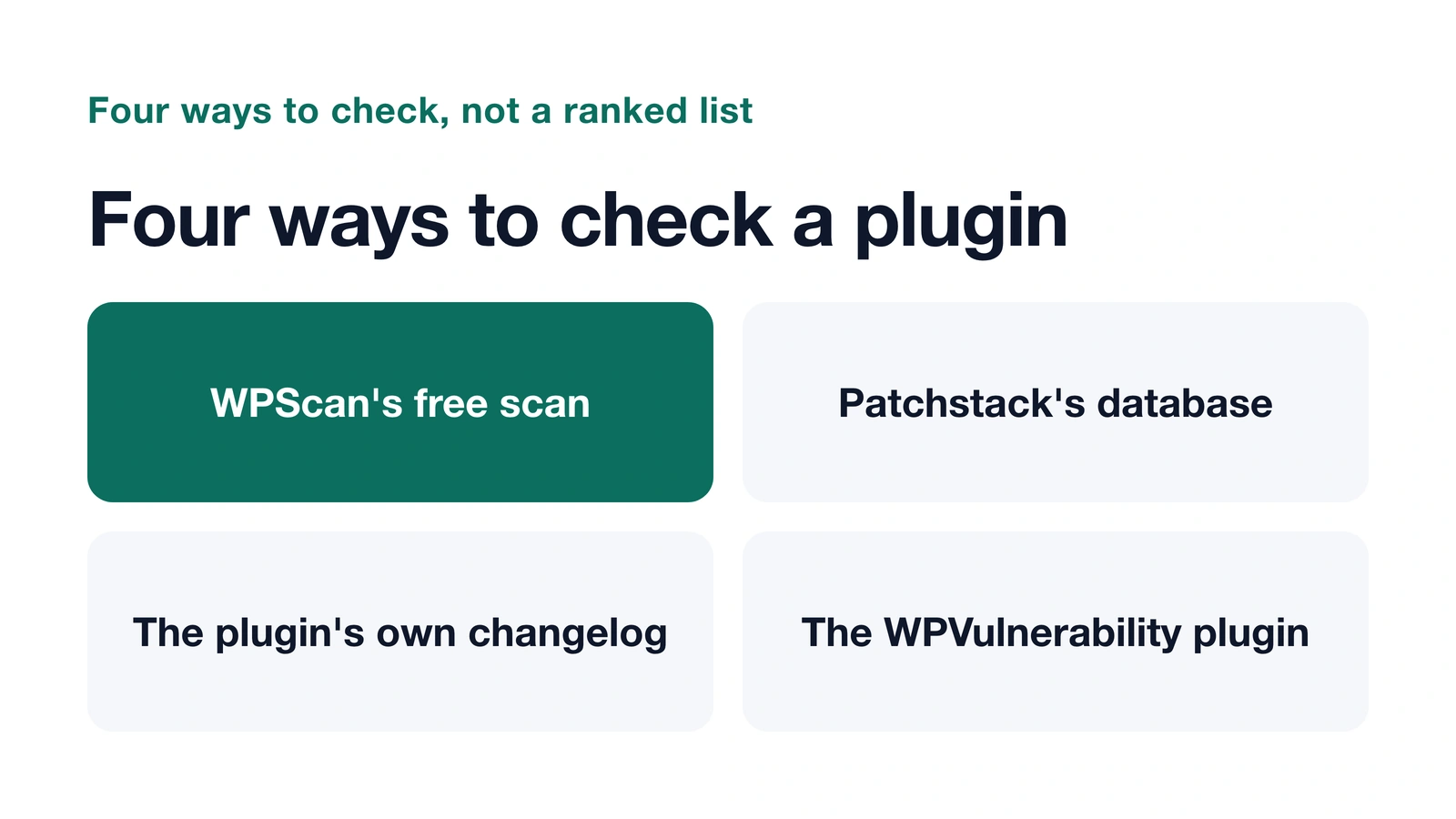
You can check any WordPress plugin for known vulnerabilities in a few minutes using two free, searchable databases — WPScan and Patchstack — plus the plugin’s own version number from your wp-admin dashboard.
Key takeaways
- WPScan’s database catalogs more than 79,000 WordPress core, plugin, and theme vulnerabilities and offers a free instant site-URL scan (WPScan).
- Patchstack’s database is free to browse and searchable by product, with filters for CVSS score and whether a fix is available (Patchstack).
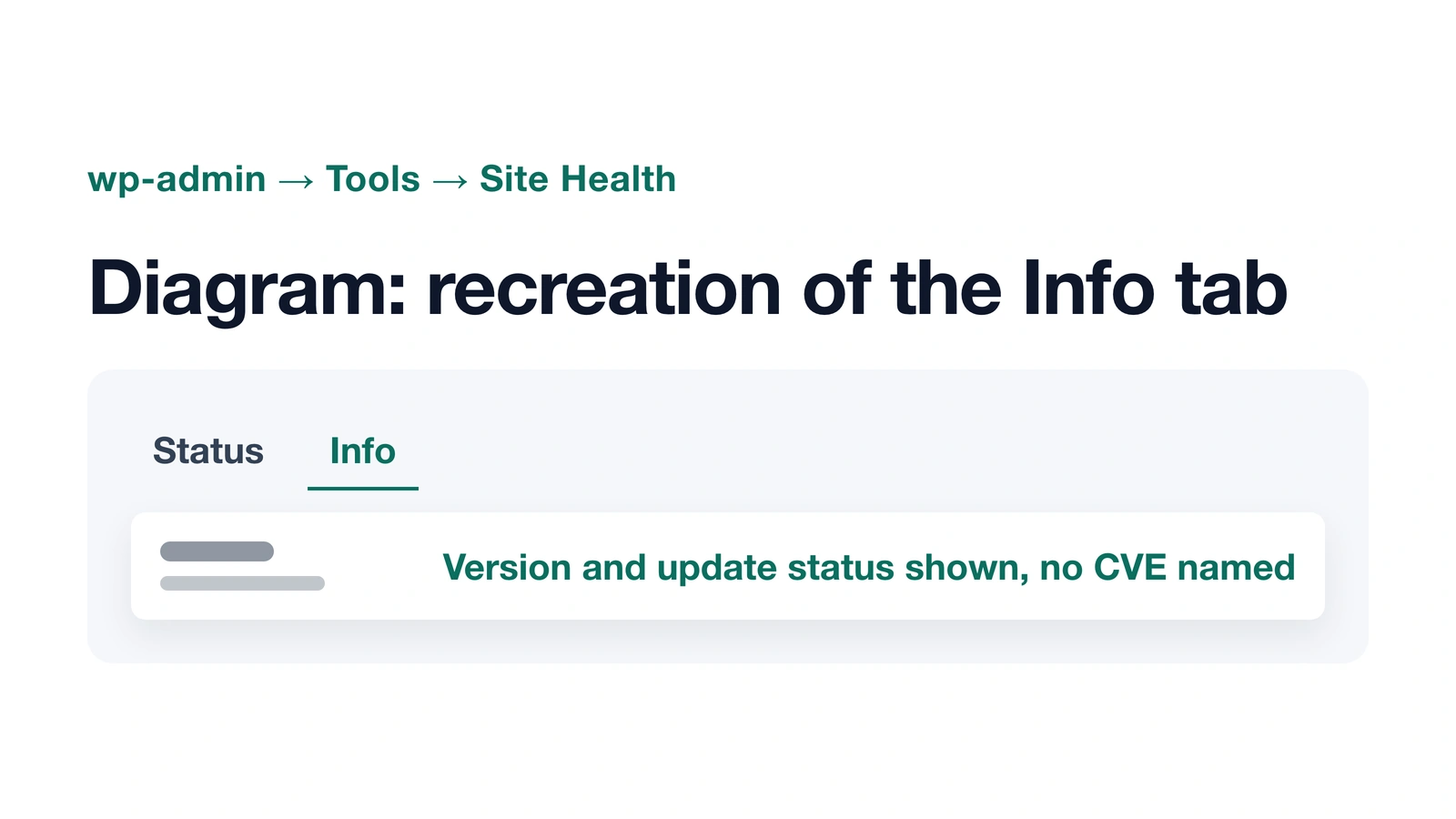
- WordPress’s own Site Health screen shows each plugin’s version and flags “plugins waiting to be updated” as a security issue, but it does not name a specific CVE (WordPress.org).
- The free WPVulnerability plugin adds vulnerability data from sources including CVEs directly into your wp-admin dashboard and Site Health screen (wordpress.org).
In this guide
- Before you start: find your plugin’s version
- Method 1: search WPScan’s database
- Method 2: search Patchstack’s database
- Method 3: compare against the plugin’s own changelog
- Does Site Health show vulnerabilities?
- A dashboard alternative: the WPVulnerability plugin
- Worked example: the three 2026 CVEs
- Bottom line
Before you start: find your plugin’s version
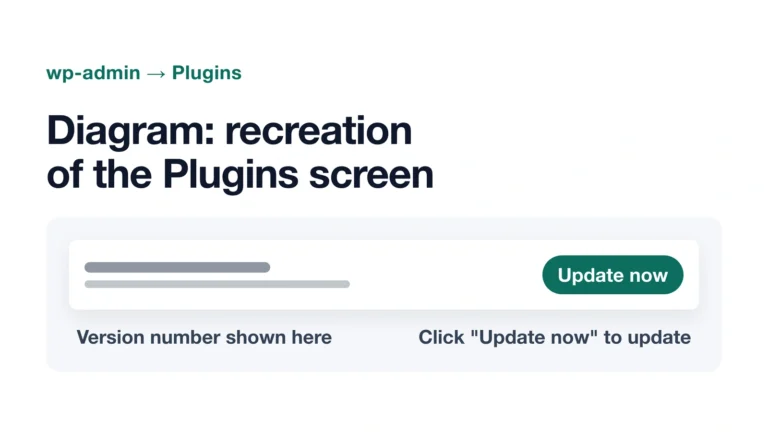
Every plugin lists its installed version directly under its name on wp-admin → Plugins. Write down the plugin name and exact version number before searching either database below — a vulnerability check only means something if you’re comparing it against the version you actually run.
Method 1: search WPScan’s database
WPScan’s plugin vulnerability database is free and public, and its homepage offers an instant scan of any site URL plus a searchable catalog it describes as covering more than 79,000 WordPress core, plugin, and theme vulnerabilities (WPScan). Search for the plugin by name on wpscan.com, open its vulnerability listing, and check whether your installed version falls inside any listed affected range.
Method 2: search Patchstack’s database
Patchstack’s database is searchable by product name, with filters for CVSS score and whether a fix is currently available, and the core database is free to browse without an account (Patchstack). A paid “Start trial” tier adds extra features, but looking up a single plugin’s vulnerability history doesn’t require one.
Method 3: compare against the plugin’s own changelog
A plugin’s own changelog, published on its wordpress.org page or the vendor’s site, usually lists security fixes by version even when it doesn’t use the word “vulnerability.” If a version between your installed one and the current release mentions a security fix, that’s a signal to update even before a CVE search turns up a match.
Does Site Health show vulnerabilities?
Not by name. WordPress’s own Site Health documentation states the Info tab’s Active Plugins section shows each plugin’s version, author, and auto-update status, and that the Status tab’s “Critical issues” group includes “You have plugins waiting to be updated” as a security-type item — but the official documentation does not describe Site Health labeling a specific CVE (WordPress.org). Site Health is a good place to see that an update is available; it isn’t a vulnerability database.
A dashboard alternative: the WPVulnerability plugin
The free WPVulnerability plugin, with 10,000 or more active installs on wordpress.org, integrates the WPVulnerability.com API directly into your dashboard, plugins list, and Site Health screen, and states its data “come from different sources, such as CVEs” (wordpress.org). It’s an option if you’d rather see a flag inside wp-admin than run manual lookups on WPScan or Patchstack.
Worked example: the three 2026 CVEs
Is my WordPress site affected? A 2026 plugin vulnerability checklist covers three plugins with confirmed 2026 CVEs — Elementor Pro, All-in-One WP Migration and Backup, and Everest Forms — as a concrete example of everything above: each plugin’s affected and fixed version came from exactly this kind of NVD, WPScan, and vendor-changelog cross-check, not a single source taken at face value.
Bottom line
Checking a plugin for known vulnerabilities takes three things: your installed version number, a search on WPScan or Patchstack, and a glance at the plugin’s own changelog. Site Health is useful for spotting that an update exists, not for confirming why. None of these methods require a paid account.
How AI was used: Claude researched this post using WPScan’s, Patchstack’s, and WordPress.org’s own documentation, wrote it, and made two diagrams, including a recreation of a nichestead.com admin screen. JY.Choi, the site’s owner, set the editorial rules; no person reviews posts before they go live.