LiteSpeed cache Purge All not working? The real fix
By JY.Choi
LiteSpeed Cache’s “Purge All” only clears LiteSpeed’s own web-server cache — on Hostinger, a separate CDN/edge cache layer can still serve an old file after Purge All says it worked, which is exactly what happened on nichestead.com with a deleted plugin’s leftover script.
Key takeaways
- Purge All clears LSCache entries, CSS/JS, the opcode cache, viewport images, and the Gravatar cache — it does not reach into a different caching system (LiteSpeed Documentation).
- LSCache is handled by the LiteSpeed web server itself; a CDN is a separate product layered on top of it (LiteSpeed Documentation).
- On nichestead.com, a
cdn-reach.hostinger.comscript and a cookie from an already-deleted plugin kept loading on the homepage even after Purge All reported success (wordpress-setup.md). - Running hPanel’s own “Clear cache” action removed the leftover file; Purge All alone did not (
wordpress-setup.md).
In this guide
- What Purge All actually clears
- The second cache layer Hostinger doesn’t mention alongside it
- What happened on nichestead.com
- The fix: clear Hostinger’s own cache too
- Why does my cache come back immediately after I clear it?
- Bottom line
What Purge All actually clears
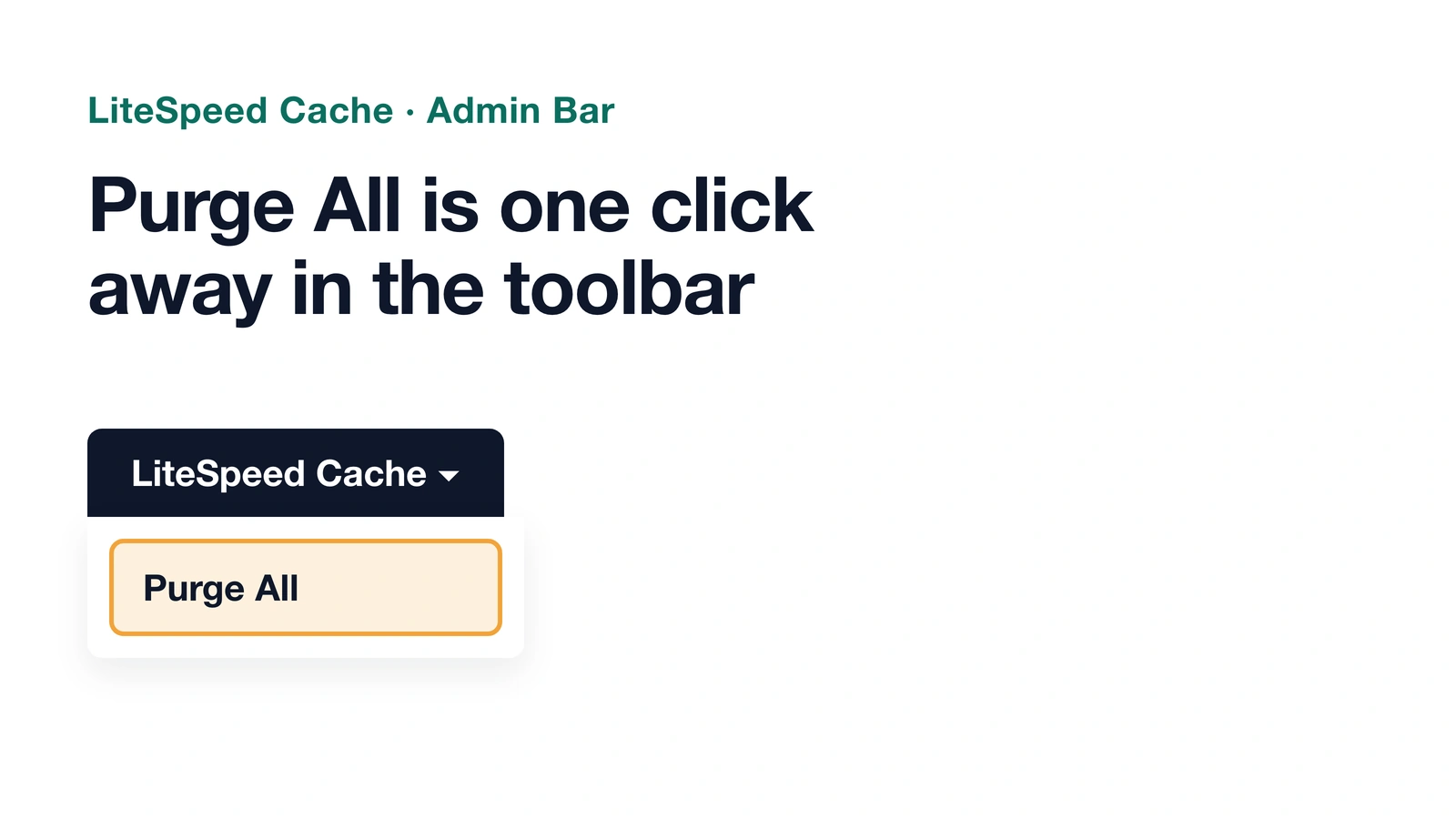
LiteSpeed Cache’s “Purge All” button, reachable from the admin bar or the plugin’s Toolbox, purges LSCache entries, CSS/JS caches, the opcode cache, viewport images, and the Gravatar cache — everything except Critical CSS, Unique CSS, and LQIP placeholders. A separate “Empty Entire Cache” button exists only on multisite Network Admin and is described as reaching cache entries from other web applications, not the single-site Purge All button most WordPress admins use (LiteSpeed Documentation).

The second cache layer Hostinger doesn’t mention alongside it
LiteSpeed’s own documentation describes LSCache as caching handled by the LiteSpeed web server itself, and it lists QUIC.cloud CDN as a separate product, not part of LSCache’s own operation (LiteSpeed Documentation). Hostinger runs its own CDN/edge cache alongside LSCache, and its two help articles cover them separately rather than together: a general cache article describes hPanel’s “Flush Cache” button and clearing a caching plugin from inside its own settings (Hostinger Help Center), while Hostinger’s dedicated LiteSpeed article only walks through the LiteSpeed Cache plugin’s own Purge All shortcut or its Cache > Purge tab, with no mention of a separate CDN step needed alongside it (Hostinger Help Center). Neither article documents that clearing the LiteSpeed plugin’s cache and clearing Hostinger’s own edge cache are two different actions, and a change can need both.

What happened on nichestead.com
On 2026-09-14, nichestead.com’s cached homepage was already a LiteSpeed cache HIT and a Hostinger CDN HIT, about 76 minutes old, and it still loaded a cdn-reach.hostinger.com script and set a Cloudflare __cf_bm cookie left over from the already-deleted Hostinger Reach plugin — after LiteSpeed Cache’s Purge All had already reported “Purged all caches successfully” (wordpress-setup.md). The plugin was gone from the site, but its script was still being served from the CDN layer, not from LiteSpeed’s own cache.
The fix: clear Hostinger’s own cache too
- Run LiteSpeed’s Purge All first, from the admin bar or Toolbox > Purge tab. Confirm it reports success.

- Check the live site for the old file or script anyway, especially after removing a plugin. A private/incognito window, or a tool that fetches the page without a browser cache, shows what’s actually being served.
- If the old file is still there, clear Hostinger’s own cache from hPanel — the “Clear cache” action under the Dashboard, separate from the LiteSpeed plugin screen entirely. On nichestead.com, this step is what actually removed the stale
cdn-reach.hostinger.comscript and cookie; the following curl check on the uncached response confirmed it was gone (wordpress-setup.md). - Re-check the live page. If the file is still present after both steps, the script may be cached somewhere else again, such as a browser’s own cache — clear that separately before assuming the server-side fix didn’t work.
Why does my cache come back immediately after I clear it?
If an old file reappears right after a purge, the most likely explanation is that two different cache layers exist and only one was cleared. LiteSpeed’s Purge All resets the web-server-level cache; it doesn’t reach a separate CDN or edge cache running on top of it (LiteSpeed Documentation). A plugin cache, a CDN cache, and a browser cache can all hold the same old file independently, so a fix that only clears one of them can look like it “didn’t work” when really only one layer changed.
Bottom line
Purge All clears LiteSpeed’s own cache and nothing more. If a change — especially deleting a plugin — still shows up as before on the live site, clear the host’s own CDN or edge cache separately; on Hostinger that means hPanel’s “Clear cache” action, which is what removed the leftover script on nichestead.com.
WP Mail SMTP Gmail 535 error fix
how to start a blog
How AI was used: Claude researched this post, wrote it, and made all three diagrams, including recreations of nichestead.com admin screens, then checked each claim against the linked LiteSpeed and Hostinger documentation. JY.Choi, the site’s owner, set the editorial rules; no person reviews posts before they go live.